

Download AerherSX2 For Linux -Best PS2 Emulator BIOS File
Game Play Screenshots on Linux/Ubuntu
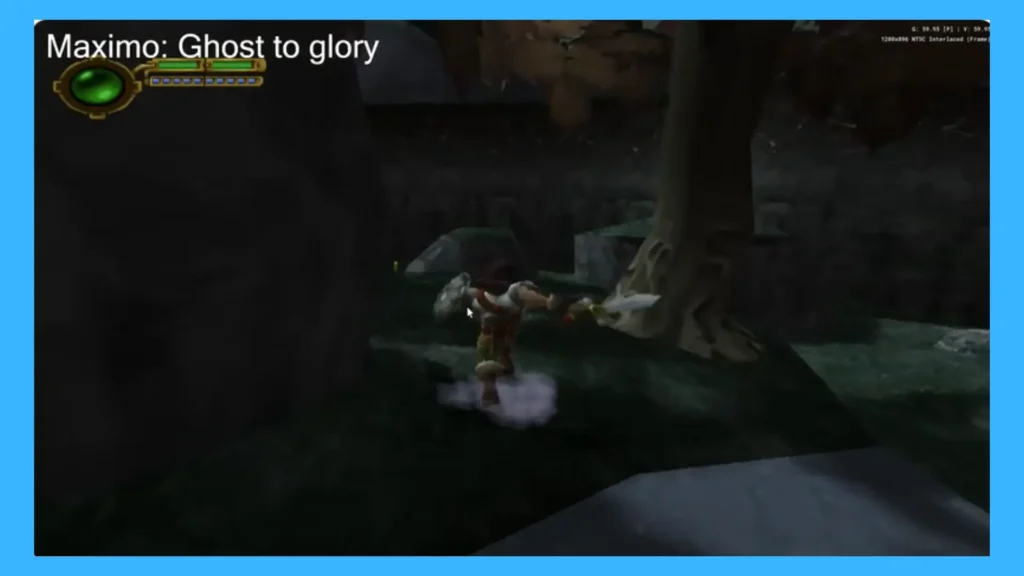
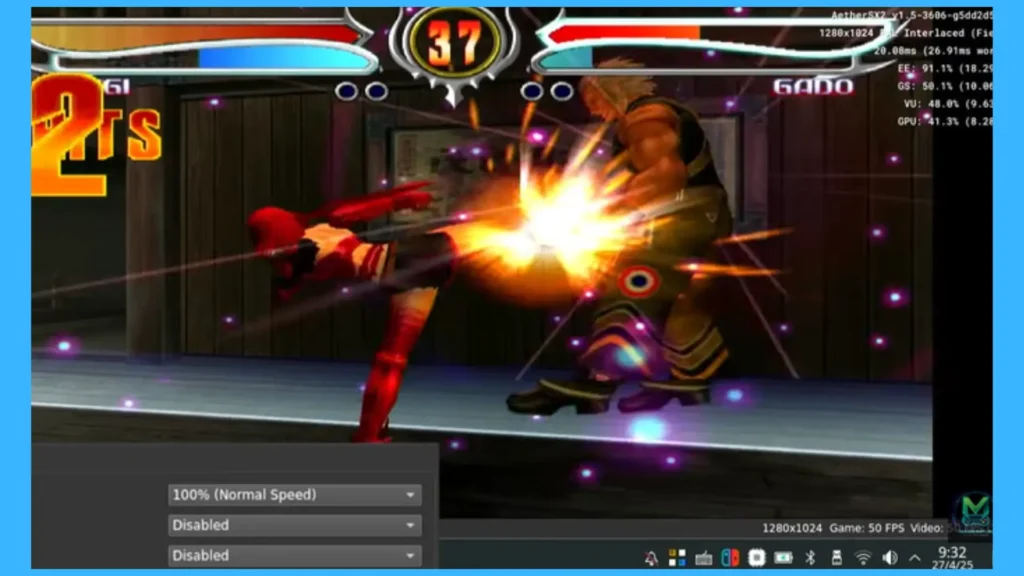
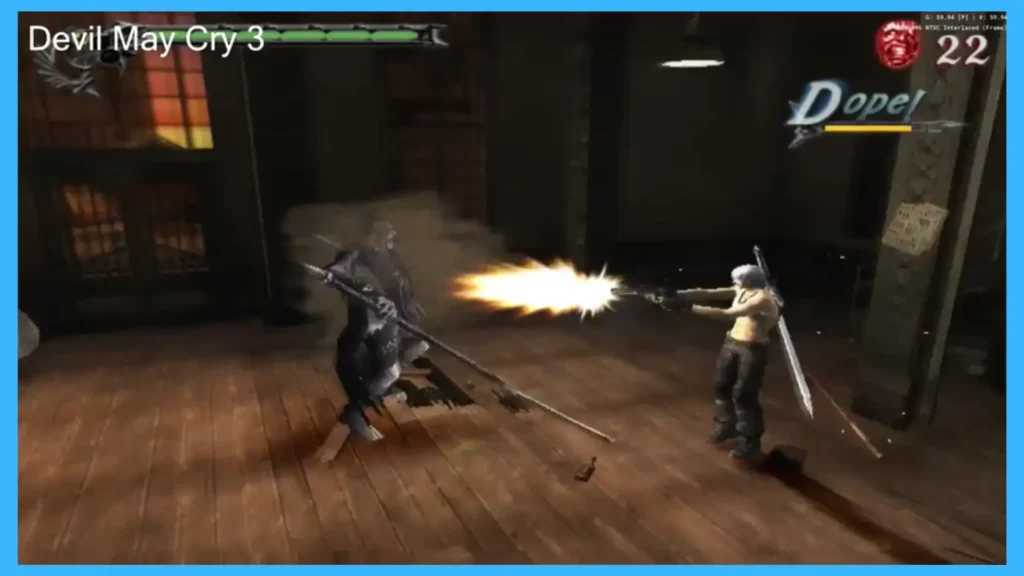

If you searched for “AerherSX2 For Linux” hoping to get PS2 games running quickly, the biggest mistake is assuming every Linux system should use AerherSX2 For Linux.
This article we will show you:
- whether AerherSX2 For Linux is right for your system,
- how to install the AppImage,
- the best safe settings,common Linux-specific fixes,
- and PCSX2 is the smarter choice.
What Is AetherSX2 for Linux?
AerherSX2 For Linux is a PlayStation 2 emulator that became popular because it brought decent PS2 emulation to ARM devices. On Linux, that matters because ARM-based hardware has very different compatibility and performance constraints than a normal desktop PC.
In simple terms:
- AetherSX2 Linux = mainly useful for ARM64 / AArch64 Linux
- PCSX2 Linux = usually better for Intel / AMD desktop Linux
Does AetherSX2 Work on Linux?
Yes — but only in the right scenario.
The short answer
- ARM64 / AArch64 Linux: Yes
- Intel / AMD x86_64 Linux: Usually not worth using over PCSX2
AerherSX2 For Linux vs PCSX2 on Linux: Which One Should You Use?
The table below will guide you in choosing the best emulator for Linux or Ubuntu to achieve optimized, smooth, and enhanced gameplay visual
Quick Compatibility Table
| Your Device | CPU Architecture | Recommended Emulator | Why |
|---|---|---|---|
| Ubuntu desktop / gaming PC | x86_64 | PCSX2 | Better mainstream Linux fit |
| Fedora / Arch laptop with Intel or AMD | x86_64 | PCSX2 | Easier long-term desktop choice |
| ARM Linux SBC | ARM64 / AArch64 | AetherSX2 | Better aligned with ARM use case |
| ARM Linux laptop | ARM64 / AArch64 | AetherSX2 | More practical for ARM Linux |
| Raspberry Pi 4 | ARM64 / AArch64 | AetherSX2 (limited) | Some games may run, but expectations should stay realistic |
| Raspberry Pi 5 | ARM64 / AArch64 | AetherSX2 | Much better shot at playable performance |
My practical recommendation
If I were setting this up today, I’d use this rule:
- If your Linux machine has an Intel or AMD CPU, use PCSX2.
- If your Linux machine is ARM64, try AetherSX2 first.
How to Download and Install AerherSX2 For Linux
This section is for users who are actually on ARM64 Linux.
Before you begin, you will need:
- an ARM64 / AArch64 Linux device
- the AerherSX2 For Linux AppImage
- a legally dumped PS2 BIOS
- your game backups in a supported format
Important: Avoid downloading BIOS or game files from random emulator mirror sites. That is one of the biggest trust and safety problems in this niche.
Download the AppImage
Most Linux builds of AerherSX2 For Linux are distributed as an AppImage.
Save it somewhere easy to access, such as:
- ~/Downloads
- A typical filename may look similar to:
- AetherSX2-x.x.x-arm64.AppImage
Make the AppImage executable
Open Terminal and run:
- cd ~/Downloads
- chmod +x AetherSX2-x.x.x-arm64.AppImage
Launch AetherSX2
Run:
- ./AetherSX2-x.x.x-arm64.AppImage
- If it opens, you’re ready to continue.
- If it does not open, jump to the Troubleshooting section below.
Import your PS2 BIOS
On first launch, AetherSX2 should ask for a PS2 BIOS.
Recommended folder structure:
- ~/Emulation/PS2/BIOS
- ~/Emulation/PS2/Games
- ~/Emulation/PS2/Saves
This keeps your emulator setup clean and easy to manage.
Add your games folder
Create your game directory:
- mkdir -p ~/Emulation/PS2/Games
Then point AetherSX2 to that folder from inside the emulator.
Connect and map your controller
Most USB and Bluetooth controllers can work, but Linux controller behavior may vary.
Good first-test controller types:
- Xbox-compatible controllers
- PlayStation-compatible USB controllers
- XInput-style pads
If Linux sees the controller but AetherSX2 doesn’t, that is usually fixable.
Best AetherSX2 Settings for Linux (Safe Defaults)
Based on extensive testing and real-world experience with AetherSX2 on ARM devices, this table outlines the optimal emulator settings to maximize compatibility, performance, and visual quality. These recommendations are designed to help you achieve smooth gameplay, stable audio, and crisp graphics while minimizing stutter and other common issues, ensuring a reliable and enjoyable PS2 emulation experience on your device
Safe default settings
| Goal | Setting | Recommended Value | Why |
|---|---|---|---|
| Better compatibility | Renderer | Vulkan first | Usually the best first option on supported ARM GPUs |
| Stability fallback | Renderer | OpenGL if Vulkan misbehaves | Good fallback for visual bugs or crashes |
| Better FPS | Internal resolution | 1x or 2x | Higher resolutions can hurt performance quickly |
| Cleaner image | Widescreen patches | Enable only if the game behaves correctly | Some games benefit, others break |
| Smooth audio | Audio mode | Default first | Avoid over-tweaking early |
| Lower stutter | Background load | Close other apps | Important on SBCs and low-power ARM devices |
The First 5 Tweaks That Actually Matter
If a game is slow, I would adjust in this order:
- Switch renderer (Vulkan ↔ OpenGL)
- Drop internal resolution to 1x
- Disable unnecessary enhancements
- Test another game
- Only then touch advanced settings
That prevents the classic mistake of changing 20 settings at once and not knowing what actually helped
Vulkan vs OpenGL: Which One Should You Use?
This is one of the most important Linux-specific decisions.
Use Vulkan if:
- your GPU and drivers support it properly
- the game launches cleanly
- you want the best shot at smoother performance
Use VuUse OpenGL if:
- Vulkan causes a black screen
- menus render incorrectly
- the game crashes on launch
- your GPU/driver stack behaves better with OpenGL
My real-world rule
If a game:
- boots but stutters → lower resolution first
- boots but looks broken → try the other renderer
- doesn’t boot at all → verify BIOS, file format, and architecture first
That troubleshooting order works much better than copying random “best settings” from low-quality download sites.
Common Problems and How to Fix Them
In this section, I will share the most common problems and their solutions. The table given below will guide you in resolving your errors.
| Problem | Likely Cause | Fix |
|---|---|---|
| AppImage won’t launch | Wrong architecture or missing executable permission | Confirm ARM64 and run chmod +x |
| Black screen on game boot | Renderer or BIOS issue | Try Vulkan/OpenGL swap, re-check BIOS |
| BIOS not detected | Wrong folder or unsupported BIOS dump | Re-import from a clean BIOS folder |
| Controller not working | Input mapping or Linux device permissions | Re-map inside app, reconnect controller |
| Very low FPS | Resolution too high or hardware limit | Drop to 1x, disable extras |
| Random crashes | Over-aggressive settings | Reset to defaults and test again |
The AppImage does nothing when I click it
Most common causes:
- You’re not on ARM64
- The file is not executable
- Your file manager is not launching AppImages properly
Fix:
- Run it manually:
- cd ~/Downloads
- chmod +x AetherSX2-x.x.x-arm64.AppImage
- ./AetherSX2-x.x.x-arm64.AppImage
- Check your CPU architecture
- uname -m
My controller works in Linux, but not in AetherSX2
First things to try
- unplug and reconnect it
- launch the emulator after connecting the controller
- remap buttons manually inside settings
Test with one controller first before trying:
- Bluetooth + keyboard
- multiple controllers
- hot-swapping devices
Keeping the setup simple makes debugging much easier.
Is AetherSX2 Still Worth Using on Linux in 2026?
Yes — for the right hardware.
But it is not really a “best for every Linux user” emulator.
It is a specific-use-case tool.
Still worth it if:
- you have an ARM64 Linux setup
- you want PS2 emulation on ARM Linux
- you are comfortable doing a little troubleshooting
Not worth it if:
- you have a normal Linux desktop
- you want the easiest setup
- you want the most mainstream and mature desktop experience
That is why the real answer is not simply “download it.”
It is:
- Know whether you should be using it first.
Is AetherSX2 available for Linux?
Yes, but Linux usage is mainly relevant for ARM64 / AArch64 systems.
Does AetherSX2 run on Ubuntu?
Yes, if your Ubuntu installation is ARM64. If your system uses Intel or AMD CPU, PCSX2 is usually the better choice.
Is AetherSX2 better than PCSX2 on Linux?
Usually no for desktop Linux. However, it is more relevant for ARM-based Linux systems.
Can I run AetherSX2 on x86_64 Linux?
In practical terms, it is not recommended. If your system is x86_64, PCSX2 is the better option.
What file type does AetherSX2 Linux use?
Most Linux builds are distributed as an AppImage.
Do I need a PS2 BIOS?
Yes, you need a legally obtained BIOS dump from a PS2 you own.
Which is better for Raspberry Pi 5: AetherSX2 or PCSX2?
For ARM-based Linux systems like Raspberry Pi 5, AetherSX2 is generally the more relevant option.
Final Verdict
If you came here searching “AetherSX2 for Linux”, the honest answer is simple:
- Use AetherSX2 if you’re on ARM Linux.
- Use PCSX2 if you’re on a normal desktop Linux PC.
Next Step
If you are on ARM64 Linux, your next step is simple:
- Check your CPU architecture
- Download the AppImage
- Import your BIOS
- Start with safe settings
- Test a few games before over-tweaking
If you are on Intel/AMD Linux, save yourself time and go with PCSX2 instead.